Author: Lorelle VanFossen

Lorelle VanFossen is a pioneering XR Innovator and WordPress leader, tech educator, keynote speaker, and producer bridging virtual reality and digital innovation. Co-founder of Educators in VR, founding WordPress community member, and passionate advocate for emerging technologies and human rights. Expert in immersive education, VR/XR event production, UX, and digital transformation.

Prompt: Crime of Poverty

The prompt this week was inspired from the poem, “What I’ve Learned,” by Stanley Kiesel in his book Prick the Balloon.

Keisel was a kindergarten teacher who went on to five books of poetry and The War Between the Pitiful Teachers and the Splendid Kids,” about his life as a teacher, called “Explosively funny” by Publishers Weekly.

In this particular poem, he ends it with the following line, which became our prompt:

The crime of poverty is not committed by the poor.

August 24, 2015 Monday Workshop: Literary Hooks

Writers in the Grove member Bunny Hansen will be presenting a writing workshop on Literary Prompts on Monday, August 24, 2015, at the Forest Grove Senior and Community Center at 9AM to 11AM.

Literary hooks are the opening sentence or sentences within novels, prose, and poetry that grab the attention of the reader and keep them reading, compell them to keep reading.

This is a repeat of her successful presentation presented at a recent Saturday Writing Workshop at the Forest Grove Library.

See you there.

Prompt: If You Had Unlimited Resources…

The prompt this week was:

IF you had unlimited resources, time, healthy, and energy, what would you write?

What is the tentative working title?

Do you have a character that yells to you from inside that wants to be born?

IF you know what you would write, why aren’t you doing it?

What is stopping you?

Get started.

Write the opening paragraph or chapter. Now.

Too Big for the Bike

The following was inspired from the prompt, “The Novice.”

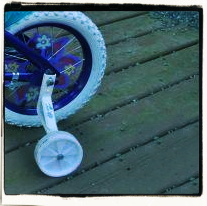
Child bicycle with training wheels and flowers in the spokesHe was too big for the bike. Knees splayed awkwardly outwards, feet slipping off the pedals, hunched over the handle bars determined to hang on, the bike pitched from side to side, training wheels bent up so far, they didn’t touch the ground. It was time. Time for the training wheels to come off. Time for the big boy to ride a big boy bike.

It was two years past the growth spurt that should have graduated him up from his purple and pink bike, red plastic ribbons hanging in a tattered shower from the ends of the white handle grips, purple metal showing through the torn plastic. The plastic flowers, once carefully woven in and out of the wheel spokes, were bend and faded, flapping against the support bars with every pass.

His face puffed fiery patches across his pale cheeks as he struggled for speed along the long driveway. He leaned into the curve of the circular drive and a training wheel grabbed the pavement. He lost control and went down hard. Tears welled up but he gritted his teeth, rose up, and straightened himself and the bike.

“Kiddo,” I called as gently and evenly as I could. “Those wheels are hurting more than helping.” I stayed still on the path to the house, toes even with the edge of the pavement. It was the furthest away he allowed me to be, watching his every movement. “Maybe it’s time to take them off.”

His head whipped around and his grip turned white on the handle bars.

“No!” He twisted the bike around and stomped toward me. “I need the wheels!”

“Looks like they are getting in your way.”

We looked down at the training wheels, little tread left on them. He’d insisted that the wheels remain tightened as an extra braking system, keeping his speed under control, and his fear. Two years of abuse had locked up the nuts rather than loosened them. The tread was worn in even patches, making the wheels blocks not circles. The metal extension brackets were pointed more to the sky than the ground, twisted and scarred from too many crashes. (more…)

Taxi to the Airport

The following is by Lorelle VanFossen and is based upon the Prompt: Hero, Villain, Victim. The image was of a young business woman sitting in the back of a taxi, little or no expression on her face.

The whirl of the city whizzed by the taxi as it turned off the highway toward the airport, slowing down to join the long line of other yellow, black, and orange insects carrying passengers to the first destination in their long trip. The traffic thickened to a crawl as the airport approached. Heat rose off engines and pavement in the last of the summer sun. She took a deep breath and let it slowly hiss through her teeth.

Relax the shoulders, she reminded herself. It’s another job well done. The meeting had gone better than expected. The client capitulated quickly to her proposal, a well-crafted and honed pitch. Another notch added in the belt, a thick leather strap once used for threats of family punishment now scarred and missing chunks. She closed her eyes and ran her fingers across the imaginary leather, feeling each notch, each representation of the things she’d accomplished. She worked hard to avoid the belt growing up, the supreme punishment for stealing, lying, and breaking curfew, lessons well learned and used through school, university, internships, job advancements, and now contracts negotiated with Fortune 500 companies like this. I earned this belt, she acknowledged with a slight smile. The pride of another job well done.

A burst of honking made her jump. Another taxi elbowing its way next to them joining the merge as the four lane road narrowed to two as arrivals slid to the left on the lower deck and departures rose above to the right. She rolled up her window, shutting out the stink of the fumes mingled with the end-of-day-heat asphalt. A glance at her watch, a Portuguese Hand-Wound watch simple and elegant and well-deserved after her $1.3 billion contract negotiated in 2012, assured her that the slow down in traffic would not impede her Portland Airport ritual. She took another deep breath willing herself to let go of the stress as she chartered her course through security to her favorite juice bar to fill up on freshly squeezed apple and carrot smoothie blend, then a saunter to the tiny ice cream shop by gate 16. Her father introduced her to this hidden and tasty cold treasure buried among the throng of passengers coming and going, suitcases clunking along behind them. When they were young, he would pick up handmade chocolates for her and her sister and lick his way through homemade vanilla ice cream in a light waffle cone as he waited for the call for first class. When he took her on those first business trips, they’d arrived early to ensure time for those chocolates and ice cream licks before boarding. She could taste the cold cream and unconsciously wiped her chin.

The movement shifted her purse, spilling pens and passport to the floor of the back seat. With a sigh, she pulled her long legs to the side, pressed against the seat belt, and reached for her belongings.

This saved her from the concussive force of the explosion in the airport arrival area, blasting the glass windshield into the face of her driver, killing him instantly.

Scrivener: Names and Autocomplete

In this ongoing series on Scrivener, you should have the basics under your belt. Let’s dive a little deeper into those basics with your new imported project or with the blank project we created early on in these tutorials. In this tutorial I’ll cover the Name Generator and Autocomplete Suggestion features in Scrivener.

One of the great tools Scrivener includes is a Name Generator. It helps you to generate possible character names.

To access it, go to Tools > Writing Tools > Name Generator.

Scrivener - Tools - Options - Writing Tools - Name Generator - Lorelle

The Name Generator generates random character names and can be customized to generate names specific to region and cultural areas for male, female, or both. You can set the the generator by first and last name letters or include specific letters. You can even search for names with specific meanings. (more…)

Scrivener: Import Documents and Files

Throughout this ongoing series on Scrivener so far, you’ve been experimenting with a blank project. I highly recommend my students learn first with a blank project so they can screw it up and experiment thoroughly before they start importing their own writing. Few listen. Either way, it’s time to talk about how to import your writing into Scrivener, and practice first on your experimental project.

There are two ways to get your content into Scrivener.

You can copy and paste from your word processor. Take care doing this as it will often bring in code and formatting that you might wish to remove later. You can also import the content directly into Scrivener.

We will cover both methods, but to do this right (or at least wiser), start with formatting a blank Scrivener project.

Remember, importing your writing into Scrivener makes a copy of the original files. It does not modify them. They remain untouched. Save them off your computer in a protected and secure place as backups.

Formatting a New Project

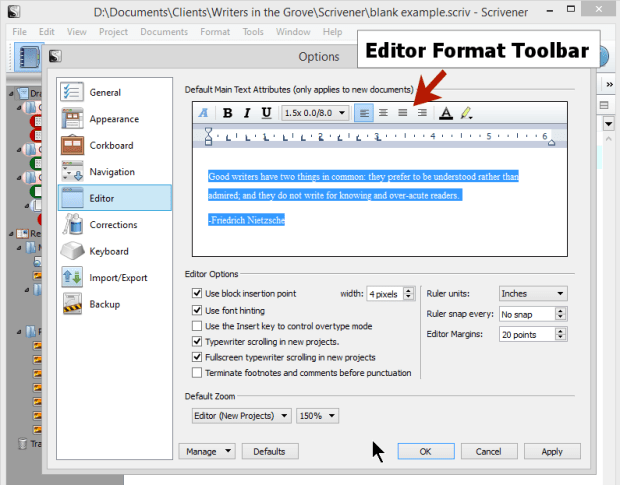
Go to Tools > Options > Editor.

Scrivener - Options - Editor - Interface - Lorelle

This is where you format Scrivener for what you will use on the screen. This is NOT how the document will look when published. Get that thought out of your head immediately.

The Editor creates your writing environment. How do you wish to write? Single spaced lines? Double spaced? Wide margins? Narrow? Indented paragraphs? Not? Large fonts? Serif or sans-serif fonts?

With the Editor, you can set up a writing environment the way you wish to write. When the writing is compiled (exported), you may control the end result there.

Changing the formatting of the Editor is best done before you add your writing. It applies only to new documents, not previous ones. I’ll cover how to fix the older styles and formatting in another tutorial. (more…)

Scrivener: Organizing a Scrivener Project

I don’t know about you and your writing, but I tend to be a disorganized writer that wants to be an organized and disciplined writer. I’ve tried just about every filing system known to modern humans. I’ve experimented with notebooks, file folders, date books, stacks of paper, piles of paper, and even garbage cans filled with paper sorted by topic. The best invention in the world for me was the sticky note. Yet, once I discovered Scrivener, most of those went the way of the real purpose of the garbage cans.

So far in this ongoing series on Scrivener, the powerful writing software tool, we’ve learned about the basic features of Scrivener including the organizational benefits of Scrivener, how to start a blank Scrivener project, how to use the Scrivener Research section in the Binder, and using the split screen feature. This tutorial starts to dive into the organizational capabilities of Scrivener.

As you’ve learned in these tutorials, you can organize Scrivener files into two core sections in the Binder of your blank project: Draft and Research. Inside of the Draft area of the Binder you have folders and text. Folders may have subfolders and text files may have sub text files as well. Let’s start there.

  1. In the Binder, click on Draft.
  2. Click the drop down arrow of the green plus symbol to add a new folder titled Chapter 3.
  3. Click on Chapter 3 folder and add a new text document the same way, naming it Testing 3A.
  4. Click on the Testing 3A file and right click, choose Duplicate to create a copy and title it Testing 3B.
  5. Repeat the process for Testing 3C.

You should now have 3 folders and the newest one should have 3 text files within it.

Scrivener - Add Chapter 3 sections to Blank Project - Lorelle VanFossen

Notice to the right of the title of the folder a number. This number indicates the number of files within the folder. In my example, there are 11 files in Research, and 9 in Draft.

Let’s practice moving things around.

Click and drag 3C to 3B. You should now see a 1 next to 3B indicating there is a subfile under it. (more…)

Scrivener: Split Screen Feature

In this ongoing series on Scrivener, the powerful writing software tool, I’ve been helping you learn about the basic features of Scrivener including the organizational benefits of Scrivener, starting a blank Scrivener project, and tips on how to use the Scrivener Research section in the Binder. This tutorial is about one of the powerful features of Scrivener, the split screen.

Many of us use white boards, sticky posts, notebooks, scratch paper, even napkins for our notes and ideas. We create storyboards with pictures of our characters tapped to them along with maps, drawings, photographs of places and things, and all the bits and pieces of visual information we use to write our stories. In Scrivener, there are many ways to duplicate that same process.

Using the Split Screen in Scrivener

Scrivener - Split Screen buttons on interface - Lorelle VanFossenIn the test Scrivener project you’ve been experimenting with, let’s pretend that you are writing your draft novel in it and you wish to refer back to a detail in a scene you wrote in Chapter 1 from Chapter 2.

Click on one of the Chapter 2 scene sections you created in the tutorial on creating folders and files or chapters and sections in Scrivener.

Where the title is above the content area and below the toolbar, look to the far right. You will see a down arrow, up arrow, and two split boxes.

Click the box with a split down the middle.

This is the vertical split screen view. You should see two versions of the same text file. (more…)