The prompt was based on a quote by Nathaniel Hawthorne.
Time flies over but leaves its shadows behind.
The prompt was based on a quote by Nathaniel Hawthorne.
Time flies over but leaves its shadows behind.
In this ongoing series on Scrivener, the powerful writing software tool, so far I’ve given you a basic overview introduction, including a collection of two Scrivener bootcamp videos to help you get started and see the possibilities in the writing program, and talked about the organizational benefits of Scrivener. Continuing with this Scrivener tutorial series, we are going to work on the blank Scrivener project you created in the previous tutorial, and in this tutorial, I want to share with you tips for using the Research section of the Binder and introduce you to the Inspector. In the next in this series, I’ll show you how to use your research with the Split Screen Feature of Scrivener.
As a reminder, Scrivener by Literature and Latte is available as a free trial version and is a deal at the current sale price of USD $40 for Windows and Mac. Compared to Microsoft Office, this is seriously inexpensive and a very powerful writing and editing tool.
Along the left side of Scrivener’s interface is the Binder, your index listing all of the documents, files, notes, writings, etc., within your Scrivener project. Remember, in Scrivener, don’t think of what is in it as a single document like you would with MS Word. Think of it as the binder or file cabinet for your entire writing project(s). Inside of it you will have the draft of the manuscript, your research notes, files, photographs, maps, whatever you need to help you write.

In the most basic installation of Scrivener using a blank template project, you will have two key sections: Draft and Research. We’ve covered the very basics of creating folders and text files in the Draft section. Let’s explore the Research section. (more…)
In this ongoing series on Scrivener, the powerful writing software tool, let’s start from scratch with a new Scrivener project and take you step-by-step through the process.
Download and install the free or paid version of Scrivener by Literature and Latte.
When you launch the program for the first time, it will invite you to go through the interactive training session. I recommend it, but that’s your choice.
 To create a new project:

In front of you is a blank canvas ready for your thoughts. (more…)
Christina Abt, author of Crown Hill and contributor to many anthologies and collections including Chicken Soup books, will be speaking at Writer’s in the Grove’s Monday workshop on August 10, 2015, from 9-11AM at the Forest Grove Senior and Community Center in Forest Grove, Oregon. She will be speaking about the changes in the publishing industry and how to get your book published. She will also be on a book tour with Barnes and Nobel throughout the Pacific Northwest and the country in general.
 Your Guide to Scrivener, the Ultimate Tool for Writers by Nicole Nionisio is available right now with a direct download for Scrivener users for free. Right click on the link and choose to save the file or target as to save this to your computer. You may also copy it to Kindle or an ebook reader if you wish.
This is a step-by-step manual for Scrivener users guiding you through the process. It covers both Mac and Windows versions, though focuses mostly on Mac. There are some differences between the two versions, but less with every new release.
If you would like to buy the book, it is available as an ebook from Amazon.com.
Other books available for sale include:
 In the first of these Scrivener tips and tutorials series, I basically covered “What is Scrivener?, and hopefully you have a better idea about what Scrivener is and how it may help with your writing. I also suggested two Scrivener Bootcamp videos to help you really dive into Scrivener with great tips and techniques by a professional journalist and bestselling author.
In this Scrivener tip, I want you to think of Scrivener as a giant binder. In that binder, you have dividers and tons of paper and photographs you need to organize.
Yes, we are going to start with visualizations. This will help you learn how Scrivener works and how to change your writing style and habits in and around it, and help you learn new words associated with Scrivener.
Imagine all the research you’ve done on your poems, stories, novel, and manuscript. You may have photographs to inspire your thoughts to a place, time, or person. You may have maps pinpointing locations and paths traveled. If you are really diving deeply into a novel or memoir, you probably have research files, digital and paper, the results of days, months, maybe years of studying the topic, place, and people you are writing about. You may have plot outlines, character sketches, and tons of notes.
How do you currently store all this information?
The digital files are most likely stored in folders, either in a collective dump or sorted by topic, place, and possibly date. To access them, you open your file management program and track them down, or open the program you use to view and work with them and hunt for them from there. This typically is Microsoft Word, PhotoShop, or variations on those popular word processing and photo editing programs.
Web pages are typically bookmarked, only accessible when you are online and connected to the web. You might have organized these by folders and subfolders, but it is also likely that you just marked them all as bookmarks in your web browser, the giant dumping ground for web pages you wish to return to in the future.
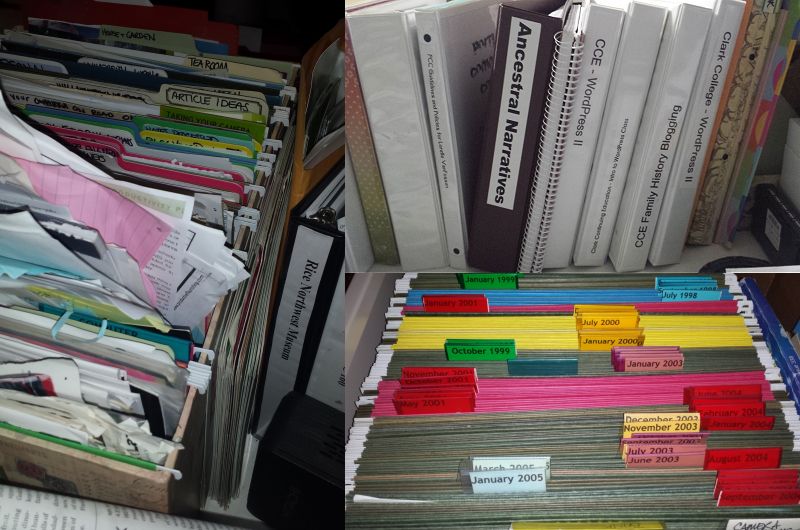
Tangible materials like papers, print-outs from the web, photographs, magazine and newspaper clippings, paintings, notes, napkins with notes…all these things are either in piles or sorted into folders in a filing cabinet.
Let’s see, you are multiple programs for accessing digital materials. You have reams of paper stuffed into files and folders, and that big metal filing cabinet collecting dust in the corner of your office a few steps from your computer desk. (more…)
This week’s prompt was based upon a workshop by our sister writer’s group in neighboring Hillsboro, Conversations With Writers. Their most recent workshop featured Maggie Chula, author of Living In The Moment: A Haiku Life and current president of the Tanka Society of America, a haiku association. She spoke about how to capture a moment, mostly in nature or using nature, to tell a story without describing the emotions. Called objective haiku, as opposed to directive haiku that describes emotions, the descriptions emote without the author telling you how to feel.
Another key to writing haiku this way is to have a surprise twist or ending.
Examples of her work included:
Warblers song
Welcomes me home
The prowling cat
Smell of Narcissus
My 13th Spring
And mother’s tumor
Sento Palace burnt
Again and again
Flaming azaleas
Our prompt inspired by her workshop was to not write in traditional and formal haiku as most of us are not trained to do so, but to use the haiku examples above to emulate haiku.
The prompt was to write haiku style in 3 lines beginning with the line Pebbles clatter.
During the Writers in the Grove Monday workshop working on objective haiku, one of our members came up with the following haiku, beautiful but too wordy, which led to an amazing lesson in editing and the many variations that maybe found when multiple creative people tackle the same subject.
We’ve decided to share our member’s original work, which she has since edited, as an additional prompt this week to inspire you to work from her original concept and see where it takes you. If you would like to share your version, please share it in the comments below.
Pebbles clatter harshly
Noise provokes my attention toward the outer door
Unnerved to discover what is behind
The goal of the prompt is to edit the above to three lines with the least amount of words to convey the powerful emotion and imagery. How few words can you use? You are welcome to change the words but attempt to keep the intent of the original.
There are two videos by a bestselling journalist and author that take you on an in depth but easy-to-do bootcamp learning how Scrivener works.
Along the way, he shows you some of his techniques, great ways of rethinking how you write as well as how you use Scrivener.
Pause and rewind as you need and rewatch them again and again as you learn more about how Scrivener works.
If you watch any videos on Scrivener, these should be the two you choose. They are each about 60-90 minutes long.
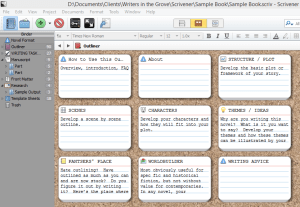 Scrivener by Literature and Latte is software for writers. It’s tagline is “Outline. Edit. Storyboard. Write.”
Some of the members of Writers in the Grove recently purchased it based upon my advice, and they’ve asked me to present a workshop on Scrivener basics soon. In the meantime, to help people get started, this is an introductory series on how writers can, and should, use Scrivener.
Scrivener is software for Windows and Mac. It is designed for professional writers to ease the process of researching and writing. It is used by professional (and not) writers, authors, script writers, poets, teachers, researchers, and anyone with a writing project.
Microsoft Word or its equivalent is used by most people to “write.” It is a word processor. It processes words. You can style and format them, making them pretty, and even write great papers and novels, setting up table of contents, chapters, page numbering, and indexes.
For a writer who writes many things, or is working on a book, working with a Word document is like writing on a never ending ribbon. Navigation is a nightmare. Finding things is horrid. It’s easy to get lost, repeat yourself, and just lose track of what you are doing.
Think of Scrivener as your pre-production writing tool, the tool you use before you get to Word. (more…)
 Writers in the Grove