Writing Tips

Scrivener: Organizing a Scrivener Project

I don’t know about you and your writing, but I tend to be a disorganized writer that wants to be an organized and disciplined writer. I’ve tried just about every filing system known to modern humans. I’ve experimented with notebooks, file folders, date books, stacks of paper, piles of paper, and even garbage cans filled with paper sorted by topic. The best invention in the world for me was the sticky note. Yet, once I discovered Scrivener, most of those went the way of the real purpose of the garbage cans.

So far in this ongoing series on Scrivener, the powerful writing software tool, we’ve learned about the basic features of Scrivener including the organizational benefits of Scrivener, how to start a blank Scrivener project, how to use the Scrivener Research section in the Binder, and using the split screen feature. This tutorial starts to dive into the organizational capabilities of Scrivener.

As you’ve learned in these tutorials, you can organize Scrivener files into two core sections in the Binder of your blank project: Draft and Research. Inside of the Draft area of the Binder you have folders and text. Folders may have subfolders and text files may have sub text files as well. Let’s start there.

  1. In the Binder, click on Draft.
  2. Click the drop down arrow of the green plus symbol to add a new folder titled Chapter 3.
  3. Click on Chapter 3 folder and add a new text document the same way, naming it Testing 3A.
  4. Click on the Testing 3A file and right click, choose Duplicate to create a copy and title it Testing 3B.
  5. Repeat the process for Testing 3C.

You should now have 3 folders and the newest one should have 3 text files within it.

Scrivener - Add Chapter 3 sections to Blank Project - Lorelle VanFossen

Notice to the right of the title of the folder a number. This number indicates the number of files within the folder. In my example, there are 11 files in Research, and 9 in Draft.

Let’s practice moving things around.

Click and drag 3C to 3B. You should now see a 1 next to 3B indicating there is a subfile under it. (more…)

Scrivener: Split Screen Feature

In this ongoing series on Scrivener, the powerful writing software tool, I’ve been helping you learn about the basic features of Scrivener including the organizational benefits of Scrivener, starting a blank Scrivener project, and tips on how to use the Scrivener Research section in the Binder. This tutorial is about one of the powerful features of Scrivener, the split screen.

Many of us use white boards, sticky posts, notebooks, scratch paper, even napkins for our notes and ideas. We create storyboards with pictures of our characters tapped to them along with maps, drawings, photographs of places and things, and all the bits and pieces of visual information we use to write our stories. In Scrivener, there are many ways to duplicate that same process.

Using the Split Screen in Scrivener

Scrivener - Split Screen buttons on interface - Lorelle VanFossenIn the test Scrivener project you’ve been experimenting with, let’s pretend that you are writing your draft novel in it and you wish to refer back to a detail in a scene you wrote in Chapter 1 from Chapter 2.

Click on one of the Chapter 2 scene sections you created in the tutorial on creating folders and files or chapters and sections in Scrivener.

Where the title is above the content area and below the toolbar, look to the far right. You will see a down arrow, up arrow, and two split boxes.

Click the box with a split down the middle.

This is the vertical split screen view. You should see two versions of the same text file. (more…)

Scrivener: The Research Binder

In this ongoing series on Scrivener, the powerful writing software tool, so far I’ve given you a basic overview introduction, including a collection of two Scrivener bootcamp videos to help you get started and see the possibilities in the writing program, and talked about the organizational benefits of Scrivener. Continuing with this Scrivener tutorial series, we are going to work on the blank Scrivener project you created in the previous tutorial, and in this tutorial, I want to share with you tips for using the Research section of the Binder and introduce you to the Inspector. In the next in this series, I’ll show you how to use your research with the Split Screen Feature of Scrivener.

As a reminder, Scrivener by Literature and Latte is available as a free trial version and is a deal at the current sale price of USD $40 for Windows and Mac. Compared to Microsoft Office, this is seriously inexpensive and a very powerful writing and editing tool.

Along the left side of Scrivener’s interface is the Binder, your index listing all of the documents, files, notes, writings, etc., within your Scrivener project. Remember, in Scrivener, don’t think of what is in it as a single document like you would with MS Word. Think of it as the binder or file cabinet for your entire writing project(s). Inside of it you will have the draft of the manuscript, your research notes, files, photographs, maps, whatever you need to help you write.

Scrivener - Draft and Research Sections of Binder - Lorelle VanFossen

In the most basic installation of Scrivener using a blank template project, you will have two key sections: Draft and Research. We’ve covered the very basics of creating folders and text files in the Draft section. Let’s explore the Research section. (more…)

Scrivener: Getting Started with a Project

In this ongoing series on Scrivener, the powerful writing software tool, let’s start from scratch with a new Scrivener project and take you step-by-step through the process.

Download and install the free or paid version of Scrivener by Literature and Latte.

When you launch the program for the first time, it will invite you to go through the interactive training session. I recommend it, but that’s your choice.

Scrivener - New Project and Project Templates Screen - Lorelle VanFossenTo create a new project:

  1. Go to File > New Project
  2. You have a choice to use an existing template or create a blank document. For this tutorial, create a blank document.
  3. Enter a file name where it says Save As:
  4. Click Browse to set the project in a folder where you can find it later. You may create a new folder in the file manager that pops up.
  5. Click Create

Scrivener Blank Project - Lorelle VanFossen for Writers in the Grove

In front of you is a blank canvas ready for your thoughts. (more…)

Scrivener: Free How to Use Book

Scrivener - Your Guide to Scrivener The Ultimate Tool for Writers by Nicole Dionisio - book coverYour Guide to Scrivener, the Ultimate Tool for Writers by Nicole Nionisio is available right now with a direct download for Scrivener users for free. Right click on the link and choose to save the file or target as to save this to your computer. You may also copy it to Kindle or an ebook reader if you wish.

This is a step-by-step manual for Scrivener users guiding you through the process. It covers both Mac and Windows versions, though focuses mostly on Mac. There are some differences between the two versions, but less with every new release.

If you would like to buy the book, it is available as an ebook from Amazon.com.

Other books available for sale include:

Scrivener: Organize Your Writing and Thinking

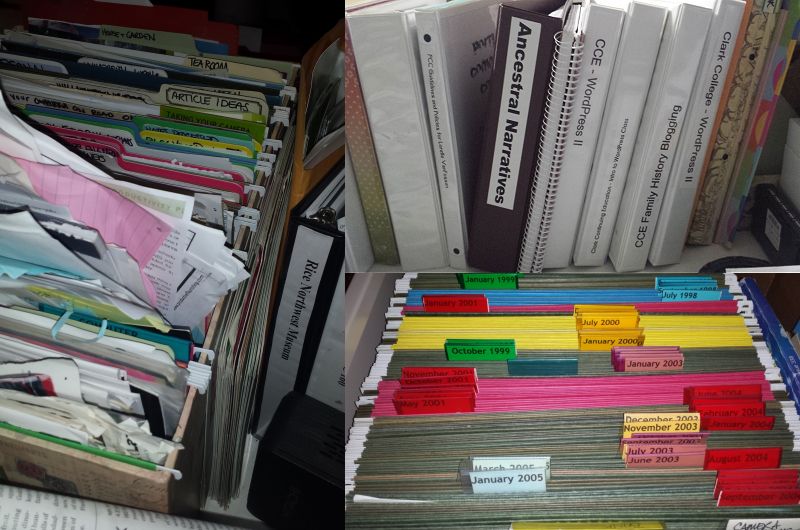
Filing System for Writing and Research - Lorelle VanFossen.In the first of these Scrivener tips and tutorials series, I basically covered “What is Scrivener?, and hopefully you have a better idea about what Scrivener is and how it may help with your writing. I also suggested two Scrivener Bootcamp videos to help you really dive into Scrivener with great tips and techniques by a professional journalist and bestselling author.

In this Scrivener tip, I want you to think of Scrivener as a giant binder. In that binder, you have dividers and tons of paper and photographs you need to organize.

Yes, we are going to start with visualizations. This will help you learn how Scrivener works and how to change your writing style and habits in and around it, and help you learn new words associated with Scrivener.

Imagine all the research you’ve done on your poems, stories, novel, and manuscript. You may have photographs to inspire your thoughts to a place, time, or person. You may have maps pinpointing locations and paths traveled. If you are really diving deeply into a novel or memoir, you probably have research files, digital and paper, the results of days, months, maybe years of studying the topic, place, and people you are writing about. You may have plot outlines, character sketches, and tons of notes.

How do you currently store all this information?

The digital files are most likely stored in folders, either in a collective dump or sorted by topic, place, and possibly date. To access them, you open your file management program and track them down, or open the program you use to view and work with them and hunt for them from there. This typically is Microsoft Word, PhotoShop, or variations on those popular word processing and photo editing programs.

Web pages are typically bookmarked, only accessible when you are online and connected to the web. You might have organized these by folders and subfolders, but it is also likely that you just marked them all as bookmarks in your web browser, the giant dumping ground for web pages you wish to return to in the future.

Tangible materials like papers, print-outs from the web, photographs, magazine and newspaper clippings, paintings, notes, napkins with notes…all these things are either in piles or sorted into folders in a filing cabinet.

Let’s see, you are multiple programs for accessing digital materials. You have reams of paper stuffed into files and folders, and that big metal filing cabinet collecting dust in the corner of your office a few steps from your computer desk. (more…)

Scrivener: Bootcamp

There are two videos by a bestselling journalist and author that take you on an in depth but easy-to-do bootcamp learning how Scrivener works.

Along the way, he shows you some of his techniques, great ways of rethinking how you write as well as how you use Scrivener.

Pause and rewind as you need and rewatch them again and again as you learn more about how Scrivener works.

If you watch any videos on Scrivener, these should be the two you choose. They are each about 60-90 minutes long.

What is Scrivener?

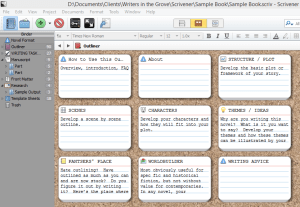
Scrivener - Corkboard Example - Lorelle VanFossen for Writers in the GroveScrivener by Literature and Latte is software for writers. It’s tagline is “Outline. Edit. Storyboard. Write.”

Some of the members of Writers in the Grove recently purchased it based upon my advice, and they’ve asked me to present a workshop on Scrivener basics soon. In the meantime, to help people get started, this is an introductory series on how writers can, and should, use Scrivener.

What is Scrivener?

Scrivener is software for Windows and Mac. It is designed for professional writers to ease the process of researching and writing. It is used by professional (and not) writers, authors, script writers, poets, teachers, researchers, and anyone with a writing project.

Microsoft Word or its equivalent is used by most people to “write.” It is a word processor. It processes words. You can style and format them, making them pretty, and even write great papers and novels, setting up table of contents, chapters, page numbering, and indexes.

For a writer who writes many things, or is working on a book, working with a Word document is like writing on a never ending ribbon. Navigation is a nightmare. Finding things is horrid. It’s easy to get lost, repeat yourself, and just lose track of what you are doing.

Think of Scrivener as your pre-production writing tool, the tool you use before you get to Word. (more…)

Writing Tips for Editors July 2015

This roundup of writing tips comes from editors – specifically editors screaming to writers to LISTEN AND OBEY!

Editors are the sheriff to our published words, the one who rounds up the misbegotten criminals and victims of our words. We owe it to them to listen to their great words of advice so we become better writers before we hand over our words to them.

Ten useful writing tips from a frustrated editor – One Salty Blonde: This is not directly from an editor but from a writer with a fantastic editor who left notes on her book that not only made it better, but made her a better writer.

5. Avoid weak adjectives and most adverbs. They weaken writing. So instead of walked quickly, write dashed or bolted. Instead of tall man, write about him towering over something.

6. Do a search of “that” when you are done with a piece. Then take out the ones that are unnecessary. It will be lots of them. “He said that he didn’t do it.” Imagine you must pay $5 for every unneeded that.

Another great article on editing is designed for blogging, but applies to writing of all types. It comes from “7 Simple Edits That Make Your Writing 100% More Powerful” by Shane Arthur of Boost Blog Traffic:

There are some bloggers who seem to have a natural gift when it comes to writing. Some bloggers seem to be naturally gifted writers.

They manage to get their ideas across clearly and economically, which means that readers can easily follow what they write. Readers devour their clear, economical prose.

Not only is there a lot of respect for what they have to say, but also the way that they say it. People respect what they say – and love how they say it.

Some beautiful lessons on editing in that.

Here are a few more good tips, advice, and instructions from editors to editors and to writers.

Mark Thalman on The Business and Art of Writing Poetry

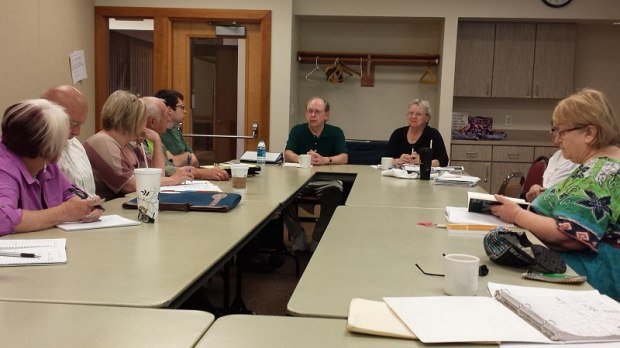
Mark Thalman, poet and teacher and author of Catching the Limit, a collection of poetry focused on outdoors, nature, and the Pacific Northwest, spoke to Writers in the Grove this morning about the art of writing and publishing poetry. These are notes from the workshop.

Mark Thalman poet speaks to Writers in the Grove group on June 22 2015 - Photography by Lorelle VanFossen - Forest Grove Senior and Community Center.

Organization for Writers

An essential part of the job of a professional writer and poet is to stay organized. To Mark Thalman, this means organized in your work habits as well as paperwork.

He shared with us details on how he tracks his writing on the computer in digital files, backed up to flash drives and other computers, and saved off-site as well. He recommends naming the files with dates to track revisions and versions. Most operating systems now embrace long file names, and he recommends you be as specific as possible to help you locate the file later.

He saves files to his document folder for his writing but doesn’t create a folder for them until there are three or four files, typically versions of the poem. Then he puts them in a folder with the title of the poem, or words describing the poem until he has a title set. All versions are kept in that folder, dated by their version date. This gives him the opportunity to revisit any of his older versions as he develops the final piece.

While he tends to keep all of his written work in digital form but also goes old school and prints out final published pieces, which he stores in a notebook. The notebook tracks the record of his poetry, each one numbered.

He sends out his work regularly to publishers, generally magazines, anthologies, prize, and contests. He tracks them in a printed chart. The chart lists the poem number, tracked back to the binder with the printed copy, the title or working title, and across the top, the publications to which he submits. Each time he sends a piece out, he writes down the date. When he gets a response, he notes it in the form. He said that he typically has 15 pieces out to editors at any one time.

When working on a book, he prints out copies of the poems and starts to organize them in another binder, considering placement, flow, and categorization, grouping similar pieces together. Thalman explained that this helps him put his work in book form as soon as possible, looking for gaps, and connecting the pieces together by theme. (more…)