Labor Day 2015 At Parks and Paula

On Labor Day, September 7, 2015, the Forest Grove Senior and Community Center will be closed for the holiday. We will be meeting at Paul and Parks in downtown Forest Grove. The address and directions will be available at the next meetings.

If you would like to attend and are new to the group, please comment below or use our contact form and we will email you directions.

Prompt: Hero, Villain, Victim

The prompt this Monday involved choosing a picture from a magazine of an adult. The images represented advertising, marketing, and the photographs used in articles to help tell their stories. Your task is to randomly search through magazines and find a picture of a person of your own to work from. Could be male or female, someone alone or with others.

Study the body language of the person, their facial expression, the way they are positioned in the scene. What stories are evoked as you examine the person in the image?

The prompt was to imagine this person as first a hero, then as a villain, then a victim, and write.

Doesn’t matter what happens or how you want to handle this, just write what comes to mind.

Scrivener: Names and Autocomplete

In this ongoing series on Scrivener, you should have the basics under your belt. Let’s dive a little deeper into those basics with your new imported project or with the blank project we created early on in these tutorials. In this tutorial I’ll cover the Name Generator and Autocomplete Suggestion features in Scrivener.

One of the great tools Scrivener includes is a Name Generator. It helps you to generate possible character names.

To access it, go to Tools > Writing Tools > Name Generator.

Scrivener - Tools - Options - Writing Tools - Name Generator - Lorelle

The Name Generator generates random character names and can be customized to generate names specific to region and cultural areas for male, female, or both. You can set the the generator by first and last name letters or include specific letters. You can even search for names with specific meanings. (more…)

Scrivener: Import Documents and Files

Throughout this ongoing series on Scrivener so far, you’ve been experimenting with a blank project. I highly recommend my students learn first with a blank project so they can screw it up and experiment thoroughly before they start importing their own writing. Few listen. Either way, it’s time to talk about how to import your writing into Scrivener, and practice first on your experimental project.

There are two ways to get your content into Scrivener.

You can copy and paste from your word processor. Take care doing this as it will often bring in code and formatting that you might wish to remove later. You can also import the content directly into Scrivener.

We will cover both methods, but to do this right (or at least wiser), start with formatting a blank Scrivener project.

Remember, importing your writing into Scrivener makes a copy of the original files. It does not modify them. They remain untouched. Save them off your computer in a protected and secure place as backups.

Formatting a New Project

Go to Tools > Options > Editor.
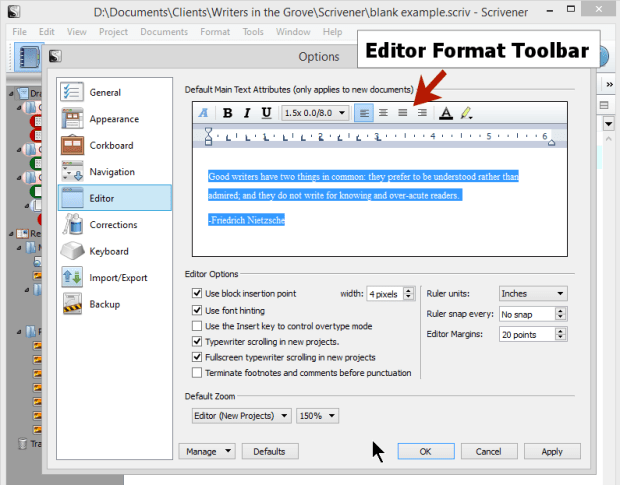
Scrivener - Options - Editor - Interface - Lorelle

This is where you format Scrivener for what you will use on the screen. This is NOT how the document will look when published. Get that thought out of your head immediately.

The Editor creates your writing environment. How do you wish to write? Single spaced lines? Double spaced? Wide margins? Narrow? Indented paragraphs? Not? Large fonts? Serif or sans-serif fonts?

With the Editor, you can set up a writing environment the way you wish to write. When the writing is compiled (exported), you may control the end result there.

Changing the formatting of the Editor is best done before you add your writing. It applies only to new documents, not previous ones. I’ll cover how to fix the older styles and formatting in another tutorial. (more…)

Scrivener: Organizing a Scrivener Project

I don’t know about you and your writing, but I tend to be a disorganized writer that wants to be an organized and disciplined writer. I’ve tried just about every filing system known to modern humans. I’ve experimented with notebooks, file folders, date books, stacks of paper, piles of paper, and even garbage cans filled with paper sorted by topic. The best invention in the world for me was the sticky note. Yet, once I discovered Scrivener, most of those went the way of the real purpose of the garbage cans.

So far in this ongoing series on Scrivener, the powerful writing software tool, we’ve learned about the basic features of Scrivener including the organizational benefits of Scrivener, how to start a blank Scrivener project, how to use the Scrivener Research section in the Binder, and using the split screen feature. This tutorial starts to dive into the organizational capabilities of Scrivener.

As you’ve learned in these tutorials, you can organize Scrivener files into two core sections in the Binder of your blank project: Draft and Research. Inside of the Draft area of the Binder you have folders and text. Folders may have subfolders and text files may have sub text files as well. Let’s start there.

  1. In the Binder, click on Draft.
  2. Click the drop down arrow of the green plus symbol to add a new folder titled Chapter 3.
  3. Click on Chapter 3 folder and add a new text document the same way, naming it Testing 3A.
  4. Click on the Testing 3A file and right click, choose Duplicate to create a copy and title it Testing 3B.
  5. Repeat the process for Testing 3C.

You should now have 3 folders and the newest one should have 3 text files within it.

Scrivener - Add Chapter 3 sections to Blank Project - Lorelle VanFossen

Notice to the right of the title of the folder a number. This number indicates the number of files within the folder. In my example, there are 11 files in Research, and 9 in Draft.

Let’s practice moving things around.

Click and drag 3C to 3B. You should now see a 1 next to 3B indicating there is a subfile under it. (more…)

Seeds of…Volume II: Anthology of Pacific Northwest Writers

SEEDS OF…Volume II: Anthology of Pacific NW Writers (Volume 2) is the latest collection of writers from Writers in the Grove and community writers from around the Pacific Northwest published by Tawk Press.

Complied, edited, and published by Writer’s in the Grove leader, MaryJane Nordgren, the anthology features a wide but cohesive collection of stories, poems, and prose that will delight you and keep you reading page after page, even out loud to friends, family, and strangers on the bus.

The publisher’s description on Amazon describes the book best:

This second collection of essays, stories and poems by writers from Oregon and Washington varies in outlook and philosophy, in form and style as widely as does the Pacific Northwest community.

Diana Lubarsky leads off “Coping” with a hilarious crisis in the lives of her characters from Dante’s Angels. Mark Thalman reminds of the fragility of the line between life and death. Ross Hall, Lois Akerson and Bunny Hansen grow from loss. In a letter to Dorothy, Fred Melden contemplates where we are after life’s experiences. Joe Schrader follows poachers from Minnesota who are little better off hunting in Oregon. Mitch Metcalf engulfs us in a disaster in the North Sea. “Relating” brings Roger Ritchey, Rebecca Robinson, Hannah Kolehmainen and Matthew Hampton in touch with Nature. Beverly Walker and G.A. Meyerink rely on love of animals to bring out the best in people. Charles Pritchard, Joan Graves and Everett Goodwin define self in relationship with another. Joan Ritchey is reminded of generations of love by the family mantle clock. Bill Stafford’s humor wrings joy from plays on words beginning with ‘O.’ In “Finding Self,” Jessica Morrell’s planned escape to Nature becomes a lesson in tolerance and the joy in giving. Nel Rand, near the end of life, returns to what has mattered most. Paula Adams’ fearful tadpoles ponder one of their own who reaches beyond the known.

Rosemary Lombard, Barbara Schultz and Susan Munger reach into foreign settings. Karen Hessen, Eva Foster, Sarah Hampton and Gerlinde Schrader grow from difficult childhood challenges. Julie Caulfield and her brother’s inability to swallow at the dictate of their father brings challenges to their mother. Sandra Mason’s heart is beside the Pacific, but her roots are deep in the Midwest in “Remembering.” Susan Schmidlin wrestles with the hitches in farm maintenance. Susan Field and Muriel Marble remember life changing in a hurricane and a war. In “Reflecting,” Marilyn Schmidlin leans on and learns from a strong tree of life. Phil Pochurek and Wafford Tornieri explore humanness in the cycles of season and the moon. Alisa Hampton and M.J. Nordgren ponder the interconnectedness of seen and unseen.

These thirty-nine authors scatter wild and domestic seed abroad into the far-flung, fertile soil of imagination. But uniting them all is the love of the strength, beauty and challenge of Pacific Northwest area of the country.

Seeds of…Volume II is available in print on Amazon.com as a paperback.

Her First Camel

Due to a technical glitch, the final paragraphs were not published of “Her First Camel” by Susan Munger in “SEEDS OF…Volume II: Anthology of Pacific NW Writers (Volume 2)” by MaryJane Nordgren, an anthology representing many members of Writers in the Grove including Susan, we publish the full version of the story here. Our sincere apologies to Susan, and gratitude for this wonderful story.

Aysha stretched her thin, bony back for a moment, willing the long, hot day to be over, wishing the wind would stop whining through their stall, wondering if she would ever get enough to eat. As Aysha returned to bending the tiny wires in and around the small golden beads, her father Azam, seated next to her, continued to shape and solder the heavier frame of the next camel.

They sat cross-legged on a thread-bare carpet in a cramped and dim corner of the marketplace, doggedly working their trade from first light to dusk. Every now and then, Aysha would have to pause and hand the camel back to her father for further soldering. No words were exchanged; the rhythm of the work made talk unnecessary.

Aysha’s father worked over a tiny fire, using a soldering iron that had a block of copper pointed at the tip to provide just the right amount of heat, uniting the solder to the wire. He knew just how much to apply, having learned this skill from his father before him. Aysha’s older brother studied every move and practiced making a stylized camel frame on which the wire and beads would be attached. It was his destiny to someday take over this role while Azam sat home resting and smoking in their scrap of a tent. For his efforts, the son earned a small fee out of the day’s take. It wasn’t much, but it was more than Aysha got, which was nothing. Nothing, that is, but her meal. Even that was pitiful, but it kept her eight-year-old body sufficiently sustained for another day of work. And another. This had always been the way. (more…)

Because

By Writer’s in the Grove member Patti Bond inspired by the July 4, 2015, prompt “Because.”

Because I want to achieve
Because I want to change
Because I want to get better
Because I need to
Because I want other people to like me
Because I want to be proud
Because I want to gain respect
Because I am special
Because I want to meet goals
Because I want to be me

Scrivener: Split Screen Feature

In this ongoing series on Scrivener, the powerful writing software tool, I’ve been helping you learn about the basic features of Scrivener including the organizational benefits of Scrivener, starting a blank Scrivener project, and tips on how to use the Scrivener Research section in the Binder. This tutorial is about one of the powerful features of Scrivener, the split screen.

Many of us use white boards, sticky posts, notebooks, scratch paper, even napkins for our notes and ideas. We create storyboards with pictures of our characters tapped to them along with maps, drawings, photographs of places and things, and all the bits and pieces of visual information we use to write our stories. In Scrivener, there are many ways to duplicate that same process.

Using the Split Screen in Scrivener

Scrivener - Split Screen buttons on interface - Lorelle VanFossenIn the test Scrivener project you’ve been experimenting with, let’s pretend that you are writing your draft novel in it and you wish to refer back to a detail in a scene you wrote in Chapter 1 from Chapter 2.

Click on one of the Chapter 2 scene sections you created in the tutorial on creating folders and files or chapters and sections in Scrivener.

Where the title is above the content area and below the toolbar, look to the far right. You will see a down arrow, up arrow, and two split boxes.

Click the box with a split down the middle.

This is the vertical split screen view. You should see two versions of the same text file. (more…)