scrivener

NaNoWriMo Novel Template for Scrivener

We’ve several members prepping for NaNoWriMo this year, the annual National Novel Writing Month where writers commit to write 50,000 words in 30 days through the month of November. We’ve put together “It’s NaNoWriMo Time: How To, Tips, Techniques, and Survival Advice” to help you as well.

For those using Scrivener to write and track their daily targets of 1,667 words, Scrivener is not only offered for 20% off during NaNoWriMo, but they also have a NaNoWriMo Novel Template to help you keep track of your progress.

Download and install the free (or paid) version of Scrivener. You will find all the information including tutorials and the template file on their Scrivener NaNoWriMo 2015 Offers web page.

NaNoWriMo Novel Template Setup.To install the NaNoWriMo Novel Template:

  1. Scroll to the bottom of the 2015 offers web page and look for the title The NaNoWriMo Novel Template
  2. Click or right click and save the ZIP file for the version of Scrivener you are using (Mac or Windows)
  3. Extract the scrivtemplate file to the directory where Scrivener is installed and the subdirectory called ProjectTemplates.
    • The location on your computer is typically C:\Users\UserName\AppData\Local\Scrivener\ProjectTemplates
  4. Open Scrivener and go to File > New Project
  5. Switch to the Fiction Templates
  6. Look for a template titled NaNoWriMo Novel Template and select it
  7. Type in a file name such as “My November 2015 Novel Draft” and choose the folder in which to store the files within your Documents folder
  8. Click Create
  9. The first document you will see contains all the instructions you need to understand how to use the template during NaNoWriMo.
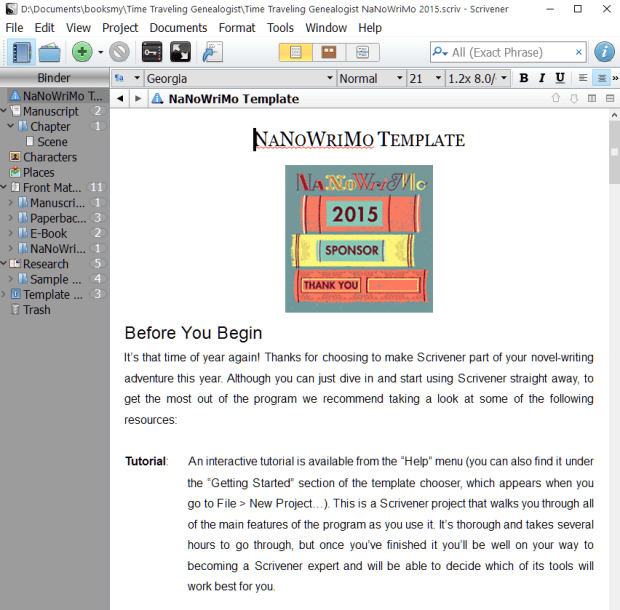
NaNoWriMo Novel Template Instructions.

To get started on November 1, go to Project > Project Targets and drag that pop-up window to a location where it doesn’t interfere with your writing. Start writing, and glance over after 45 minutes or so to see how you are doing. (more…)
Scrivener Update Released

Literature and Latte, makers of Scrivener, have just released a new update. When you launch Scrivener, it will offer to update. Please do. If you have Scrivener open, either close and reopen it or go to Help > Check for Updates and install the latest update.

There are a few things you need to know about this update.

  • Not Backwards Compatible: If you create a project in Scrivener 1.9 (new version), it will not be readable in an older version of Scrivener. They have made signifant changes, so if you have Scrivener installed on multiple computers such as your desktop and laptop, update all of them.
  • Scrivener moving toward mobile version: The changes in the new update to Scrivener is a move to ready it for a mobile version.
  • Project File Names: In the past, project.scriv was the generic project file name. It will now use the project folder name rather than “project” to help you keep track of the project files better.
  • Inspector: The Inspector has been changed a bit to allow easier usage. A View > Inspect submenu has been added for different Inspector tabs, and multiple Inspector comments and footnotes maybe expanded and collapsed using the View > Outline commands.
  • Compile: Compile now recognizes tabs and carriage returns.
  • Tutorial Updated: Updates to the tutorial build into Scrivener now includes recent modifications and a new “Quick Start” collection.

Other improves include adjusting for Windows 10 and a wide variety of bug fixes to help Scrivener work better and run smoother.

As usual, when a maintenance or major version of Scrivener is released, it is free to registered users and it is essential to update immediately. Some of these updates may include security fixes. Also, Scrivener just keeps getting better and you don’t want to get left behind.

They’ve also updated some of their Scrivener Video Tutorials to help you stay updated or learn new techniques in Scrivener.

We will be adding more Scrivener tutorials to the site soon, and plans are in work for another Scrivener workshop coming to Forest Grove, Oregon, soon.

Don’t have Scrivener yet? Scrivener will be on discount in anticipation of NaNoWriMo (National Novel Writing Month). Regularly USD $40, NaNoWriMo participants may buy Scrivener for 20% off. If you complete and win NaNoWriMo (write 50,000 words in 30 days), they will send you a coupon for 50% off Scrivener.

NOTE: Scrivener requires Microsoft C++ Runtime to be installed on your computer. If you are having problems with the installation, ensure that it proberly installed and reboot your machine before running Scrivener or the installation/update again.

It’s NaNoWriMo Time: How To, Tips, Techniques, and Survival Advice

NaNoWriMo Flyer.November 1, 2015, at midnight is the start of NaNoWriMo, the National Novel Writing Month.

The goal of NaNoWriMo is to write 50,000 words (and complete a novel) in 30 days.

Sound impossible? The numbers divide down to 1,666 words a day, typically 60-90 minutes of writing.

To participate, you may do so actively or passively. This can be a solo experience or a highly social one. You can connect online and/or connect in person through the many local activities, events, and write-ins where people gather in a social space to write and get to know each other.

Here is how it works.

  1. Before November 1, sign up on the NaNoWriMo site. There is no fee. It’s free. By registering, you will get email notifications and notes to cheer you on throughout the month, and be able to track your word count daily.
  2. At midnight, October 31, you start writing.
  3. Each day, you report the number of words you’ve written. If you are using Scrivener, it’s easy to update this information daily. I’ve included tips on how to track your writing below.
  4. If you wish, participate in the regional forums such as the one for Washington County, Oregon, and consider attending some of the many local events throughout the month. NOTE: There are also prep events online and locally worth attending.

That’s it.

NaNoWriMo typically features over 310,000 participants on six continents. Many educators work with their students to participate during November as well as throughout the year. (more…)

Scrivener: Names and Autocomplete

In this ongoing series on Scrivener, you should have the basics under your belt. Let’s dive a little deeper into those basics with your new imported project or with the blank project we created early on in these tutorials. In this tutorial I’ll cover the Name Generator and Autocomplete Suggestion features in Scrivener.

One of the great tools Scrivener includes is a Name Generator. It helps you to generate possible character names.

To access it, go to Tools > Writing Tools > Name Generator.

Scrivener - Tools - Options - Writing Tools - Name Generator - Lorelle

The Name Generator generates random character names and can be customized to generate names specific to region and cultural areas for male, female, or both. You can set the the generator by first and last name letters or include specific letters. You can even search for names with specific meanings. (more…)

Scrivener: Import Documents and Files

Throughout this ongoing series on Scrivener so far, you’ve been experimenting with a blank project. I highly recommend my students learn first with a blank project so they can screw it up and experiment thoroughly before they start importing their own writing. Few listen. Either way, it’s time to talk about how to import your writing into Scrivener, and practice first on your experimental project.

There are two ways to get your content into Scrivener.

You can copy and paste from your word processor. Take care doing this as it will often bring in code and formatting that you might wish to remove later. You can also import the content directly into Scrivener.

We will cover both methods, but to do this right (or at least wiser), start with formatting a blank Scrivener project.

Remember, importing your writing into Scrivener makes a copy of the original files. It does not modify them. They remain untouched. Save them off your computer in a protected and secure place as backups.

Formatting a New Project

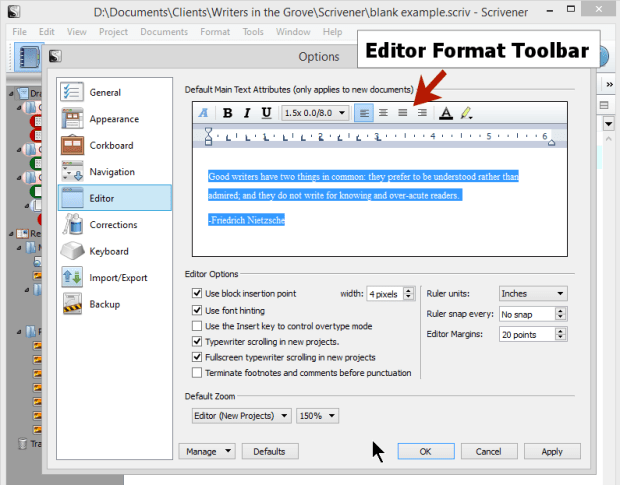
Go to Tools > Options > Editor.

Scrivener - Options - Editor - Interface - Lorelle

This is where you format Scrivener for what you will use on the screen. This is NOT how the document will look when published. Get that thought out of your head immediately.

The Editor creates your writing environment. How do you wish to write? Single spaced lines? Double spaced? Wide margins? Narrow? Indented paragraphs? Not? Large fonts? Serif or sans-serif fonts?

With the Editor, you can set up a writing environment the way you wish to write. When the writing is compiled (exported), you may control the end result there.

Changing the formatting of the Editor is best done before you add your writing. It applies only to new documents, not previous ones. I’ll cover how to fix the older styles and formatting in another tutorial. (more…)

Scrivener: Organizing a Scrivener Project

I don’t know about you and your writing, but I tend to be a disorganized writer that wants to be an organized and disciplined writer. I’ve tried just about every filing system known to modern humans. I’ve experimented with notebooks, file folders, date books, stacks of paper, piles of paper, and even garbage cans filled with paper sorted by topic. The best invention in the world for me was the sticky note. Yet, once I discovered Scrivener, most of those went the way of the real purpose of the garbage cans.

So far in this ongoing series on Scrivener, the powerful writing software tool, we’ve learned about the basic features of Scrivener including the organizational benefits of Scrivener, how to start a blank Scrivener project, how to use the Scrivener Research section in the Binder, and using the split screen feature. This tutorial starts to dive into the organizational capabilities of Scrivener.

As you’ve learned in these tutorials, you can organize Scrivener files into two core sections in the Binder of your blank project: Draft and Research. Inside of the Draft area of the Binder you have folders and text. Folders may have subfolders and text files may have sub text files as well. Let’s start there.

  1. In the Binder, click on Draft.
  2. Click the drop down arrow of the green plus symbol to add a new folder titled Chapter 3.
  3. Click on Chapter 3 folder and add a new text document the same way, naming it Testing 3A.
  4. Click on the Testing 3A file and right click, choose Duplicate to create a copy and title it Testing 3B.
  5. Repeat the process for Testing 3C.

You should now have 3 folders and the newest one should have 3 text files within it.

Scrivener - Add Chapter 3 sections to Blank Project - Lorelle VanFossen

Notice to the right of the title of the folder a number. This number indicates the number of files within the folder. In my example, there are 11 files in Research, and 9 in Draft.

Let’s practice moving things around.

Click and drag 3C to 3B. You should now see a 1 next to 3B indicating there is a subfile under it. (more…)

Scrivener: Split Screen Feature

In this ongoing series on Scrivener, the powerful writing software tool, I’ve been helping you learn about the basic features of Scrivener including the organizational benefits of Scrivener, starting a blank Scrivener project, and tips on how to use the Scrivener Research section in the Binder. This tutorial is about one of the powerful features of Scrivener, the split screen.

Many of us use white boards, sticky posts, notebooks, scratch paper, even napkins for our notes and ideas. We create storyboards with pictures of our characters tapped to them along with maps, drawings, photographs of places and things, and all the bits and pieces of visual information we use to write our stories. In Scrivener, there are many ways to duplicate that same process.

Using the Split Screen in Scrivener

Scrivener - Split Screen buttons on interface - Lorelle VanFossenIn the test Scrivener project you’ve been experimenting with, let’s pretend that you are writing your draft novel in it and you wish to refer back to a detail in a scene you wrote in Chapter 1 from Chapter 2.

Click on one of the Chapter 2 scene sections you created in the tutorial on creating folders and files or chapters and sections in Scrivener.

Where the title is above the content area and below the toolbar, look to the far right. You will see a down arrow, up arrow, and two split boxes.

Click the box with a split down the middle.

This is the vertical split screen view. You should see two versions of the same text file. (more…)

Scrivener: The Research Binder

In this ongoing series on Scrivener, the powerful writing software tool, so far I’ve given you a basic overview introduction, including a collection of two Scrivener bootcamp videos to help you get started and see the possibilities in the writing program, and talked about the organizational benefits of Scrivener. Continuing with this Scrivener tutorial series, we are going to work on the blank Scrivener project you created in the previous tutorial, and in this tutorial, I want to share with you tips for using the Research section of the Binder and introduce you to the Inspector. In the next in this series, I’ll show you how to use your research with the Split Screen Feature of Scrivener.

As a reminder, Scrivener by Literature and Latte is available as a free trial version and is a deal at the current sale price of USD $40 for Windows and Mac. Compared to Microsoft Office, this is seriously inexpensive and a very powerful writing and editing tool.

Along the left side of Scrivener’s interface is the Binder, your index listing all of the documents, files, notes, writings, etc., within your Scrivener project. Remember, in Scrivener, don’t think of what is in it as a single document like you would with MS Word. Think of it as the binder or file cabinet for your entire writing project(s). Inside of it you will have the draft of the manuscript, your research notes, files, photographs, maps, whatever you need to help you write.

Scrivener - Draft and Research Sections of Binder - Lorelle VanFossen

In the most basic installation of Scrivener using a blank template project, you will have two key sections: Draft and Research. We’ve covered the very basics of creating folders and text files in the Draft section. Let’s explore the Research section. (more…)

Scrivener: Getting Started with a Project

In this ongoing series on Scrivener, the powerful writing software tool, let’s start from scratch with a new Scrivener project and take you step-by-step through the process.

Download and install the free or paid version of Scrivener by Literature and Latte.

When you launch the program for the first time, it will invite you to go through the interactive training session. I recommend it, but that’s your choice.

Scrivener - New Project and Project Templates Screen - Lorelle VanFossenTo create a new project:

  1. Go to File > New Project
  2. You have a choice to use an existing template or create a blank document. For this tutorial, create a blank document.
  3. Enter a file name where it says Save As:
  4. Click Browse to set the project in a folder where you can find it later. You may create a new folder in the file manager that pops up.
  5. Click Create

Scrivener Blank Project - Lorelle VanFossen for Writers in the Grove

In front of you is a blank canvas ready for your thoughts. (more…)

Scrivener Basics Workshop July 23, 2015

Lorelle VanFossen is presenting an informal free workshop on Scrivener Basics in her home north of North Plains, Oregon, at 6:30PM on Thursday July 23. For directions, use the comments below, the contact form, or get them at the next Writer’s in the Grove weekly workshops. Carpooling from Forest Grove Senior and Community Center maybe available.

Scrivener Logo and Screenshots from official site

She has already released an ongoing Scrivener series of tutorials, videos, and guides to help you learn more about how Scrivener works. These are the workshop notes as well.

The workshop will cover:

  • Introduction to Scrivener
  • Explain and demonstrate why to use Scrivener for writing
  • How to create a simple project in Scrivener
  • Working with documents and research
  • How to import your writing and writing material into Scrivener
  • Basic tips on how to organize your writing and research in Scrivener

We will go slow as we can but it will help if you watch a few of the videos and read the referenced articles in What is Scrivener, Scrivener: Bootcamp, and Scrivener: Organize Your Writing and Thinking. The latter article will help you get your head around the difference between working with a word processor and Scrivener.

You will be required to bring your laptop with Scrivener installed. If you do not have it, go to Literature and Latte to get Scrivener as a free trial or paid downloadable (or order CD) version. The laptop does not have to be wifi enabled but it helps. You will also need a mouse (trackpad is painful but works), power cords for the laptop, and extra batteries for the mouse.

If you would like to bring food, drinks, and snacks to share, that would be appreciated. We will snack and work as there is much to cover.

To speed up the process, please bring a COPY file of a writing project you are working on (one or more files), pictures, scanned images or documents, and other digital research material you are using for your writing project.

This is a one time event. A follow-up event may be possible, or a class series at the Senior Center this fall if the demand is high enough.